How to Calculate a Mix's Integrated LUFS in 5 Steps (and Prepare It for Streaming)


The “Loudness War” is over, and the streaming platforms have won.
Today, if you try to pump your mix to crazy volumes hoping to sound “bigger” than everyone else on Spotify, you’ll get the opposite effect .
Normalization algorithms will take your super-compressed track and dramatically lower its volume .
The result? Your song will sound tiny, weak, and lifeless compared to the competition.
The only way to have total control over how your mix will sound when released is to properly measure and manage LUFS (Loudness Units relative to Full Scale), especially Integrated LUFS .
As a sound engineer, I see producers confusing LUFS Short-Term, Momentary, and Integrated every day.
Here's the definitive guide to measuring your song's onboard LUFS in 5 easy steps, without getting fooled by your DAW's meters, and how to use our simulator to preview what Spotify will do to your mix.
1. Understanding what Integrated LUFS are
Before you measure, you need to know what you're looking at.
Momentary LUFS measure the volume of a fraction of a second. Short-Term LUFS measure a window of about 3 seconds.
The Integrated LUFS (LUFS-I) instead measures the average perceived loudness of the entire song , from beginning to end.
This is exactly the value that Spotify, Apple Music, and YouTube use to decide whether to lower or raise the volume of your track.
Platforms don't look at the peak of the chorus, they look at the overall average.

2. Insert the Meter Correctly on the Master Bus
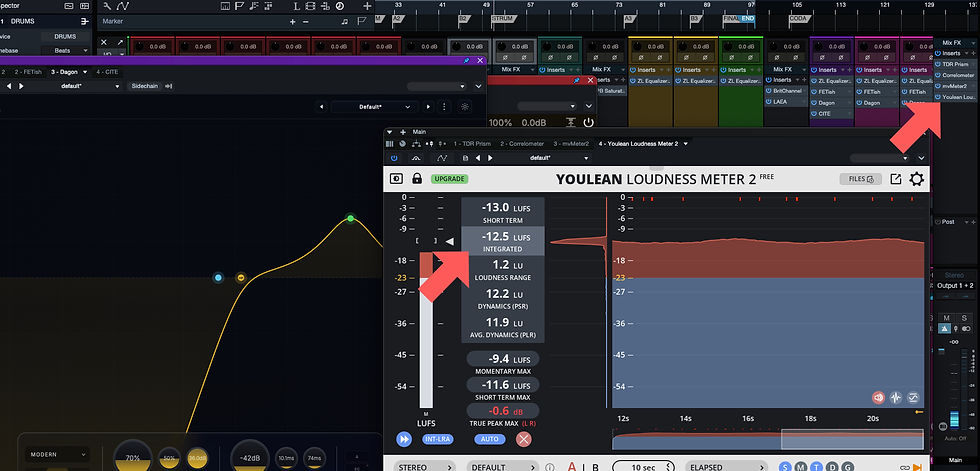
To read this value, you need a dedicated plugin (like the excellent and free Youlean Loudness Meter ).
The placement of this tool is crucial.
You should insert the Loudness Meter as the very last plugin in your chain on the Master Bus (or Mix Bus).
It must be placed strictly after your final Limiter or Clipper.
If you put it first, you will read the volume of the mix, not the volume of the actual master you will export, completely throwing off the measurements.
3. Know the Target of the Platforms
Each platform has its own reference "Loudness Target":
Spotify: Approximately -14 LUFS (with True Peak maximum at -1 dBTP).
Apple Music: about -16 LUFS.
YouTube: about -14 LUFS.
Warning: These aren't limits to be hit at all costs. If your song sounds good and dynamic at -10 LUFS, leave it at -10 LUFS! Spotify will simply lower it by 4 dB, but it will still have the punch.
Never sacrifice the energy of the song by chasing the exact number on the screen.

4. Taking the Measurement (The Total Playback)
This is the most common mistake ever made in home studios.
You can't just play the chorus, look at the Integrated LUFS meter, and say, "Okay, I'm at -14." That's a skewed average.
To calculate the real Integrated LUFS, you must:
Open the meter and press the Reset button.
Play the song from beginning to end, without ever stopping or skipping from one section to another.
Read the final value only when the song is finished.
Many modern DAWs allow you to calculate LUFS offline. In Studio One, you can export (mixdown) the track and directly read the LUFS and True Peak into the file's metadata without having to listen to the entire song in real time.

5. Adjust the Limiter and Recheck
Once you have the final reading, consider what to do next.
If your track is at -18 LUFS Built In, it will probably sound a little low on the rigs and you may want to push the Gain of your final Limiter a little to salvage a couple of dB.
If you're at -7 LUFS Integrated and your mix sounds distorted, fatiguing, or squashed, you need to take a step back: turn down the limiter input, let the transients breathe, and accept that the track will have lower RMS volume, but infinitely more punch.

The Ultimate Test: Streaming Loudness Simulator
The numbers on the screen are helpful, but your ear is the final judge.
How do you know exactly how your mix will sound when Spotify applies its penalization or compensation algorithm?
To clear up any doubts and avoid unpleasant surprises on release day, I have integrated a free and immediate tool on the VDSS Studio website: the Streaming Loudness Simulator .
Simply load your exported audio file (WAV or MP3) into the simulator. Our tool will instantly analyze the LUFS of your mix and apply the exact same normalization curve as Spotify, Apple Music, and YouTube.
You'll be able to hear in real time, by doing an A/B comparison, what will happen to your master when it's uploaded online.
Stop guessing and start publishing with confidence.

Do you need a mix and master ready for the platforms?
If you've checked your LUFS but the song still doesn't have the impact or stereo width you're looking for, at VDSS Studio we can finish the job for you.
We offer online mixing and mastering services with attention to every detail, ensuring that your song translates perfectly on Spotify, in the car, and in the club, leveraging our analog outboard for maximum three-dimensionality.
Tell us about your project. Send us a link to your current mix and ask for an exact quote.


Comments